Install the Qublo extension
From downloading the ZIP to signing in for the first time: follow the steps to prepare Qublo for importing Amazon products.
On this page
Before you start
This procedure is for the Qublo extension on a computer. Have your Qublo account email and password ready and check that you can access your account. To import, you will also need an eBay store connected and configured for the Amazon country you will work with.
Download the package through Qublo's official channel. The name and version shown in the images are those captured at the time: compare the package you are using with the information Qublo provides when you download it.
Some screenshots in this guide show Qublo already installed. They help you recognise menus and switches; they do not, by themselves, demonstrate that your ZIP has already been loaded.
1. Download the Qublo ZIP
On your computer, download the official Qublo ZIP package. Keep the file handy in your Downloads folder: you will drag it into the browser in a few steps.
If you have already downloaded the ZIP, you can go straight to the extensions menu.
2. Open Manage extensions
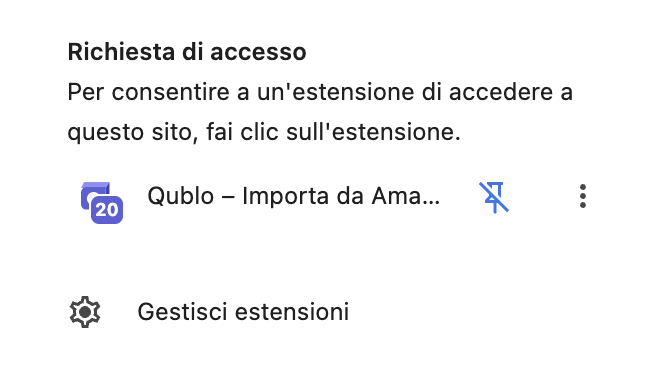
- Click the puzzle-piece icon at the top right of the browser.
- In the menu, choose Manage extensions at the bottom of the list.
This opens the page where you can install and manage Qublo.

3. Turn on Developer mode
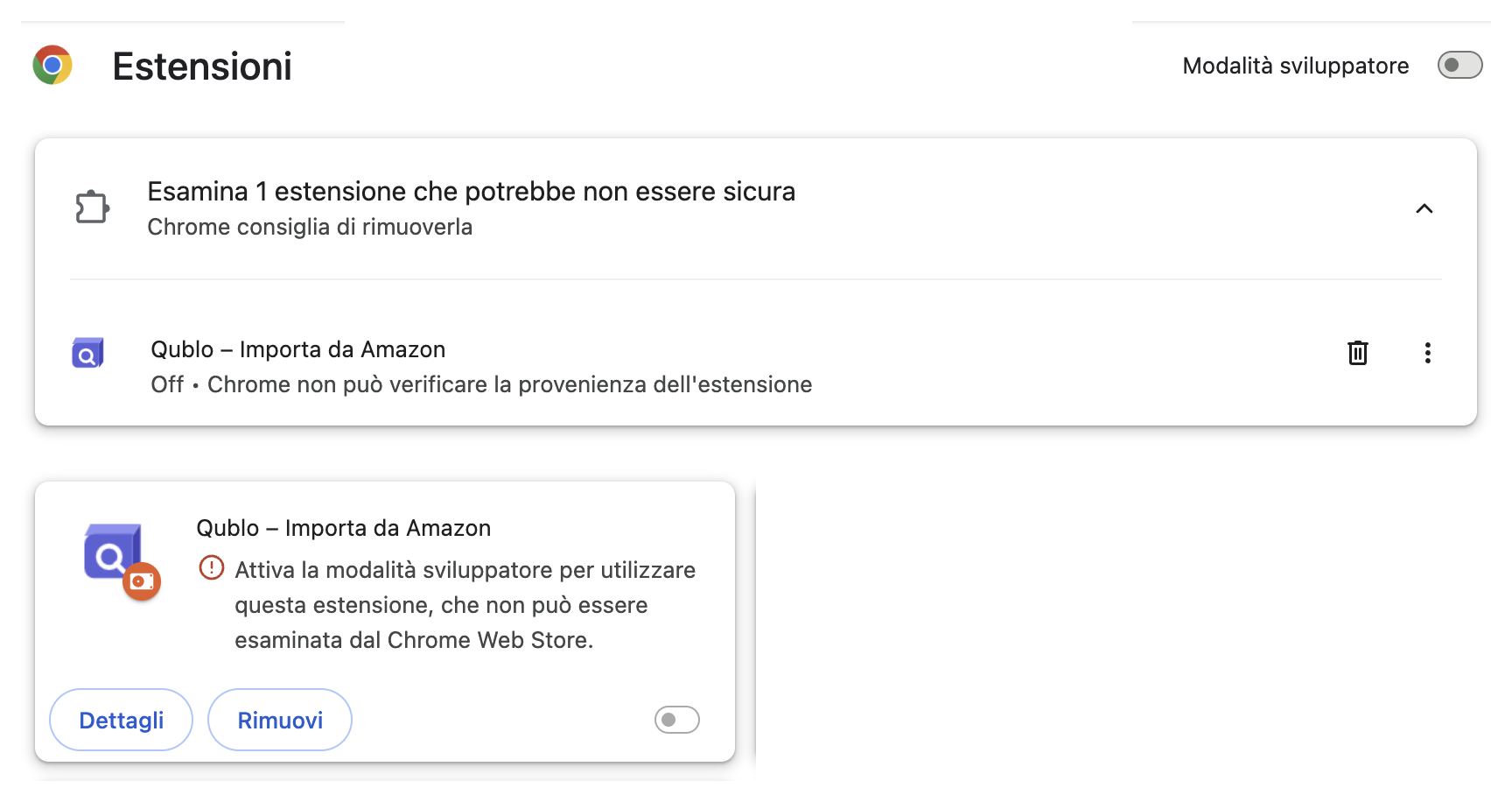
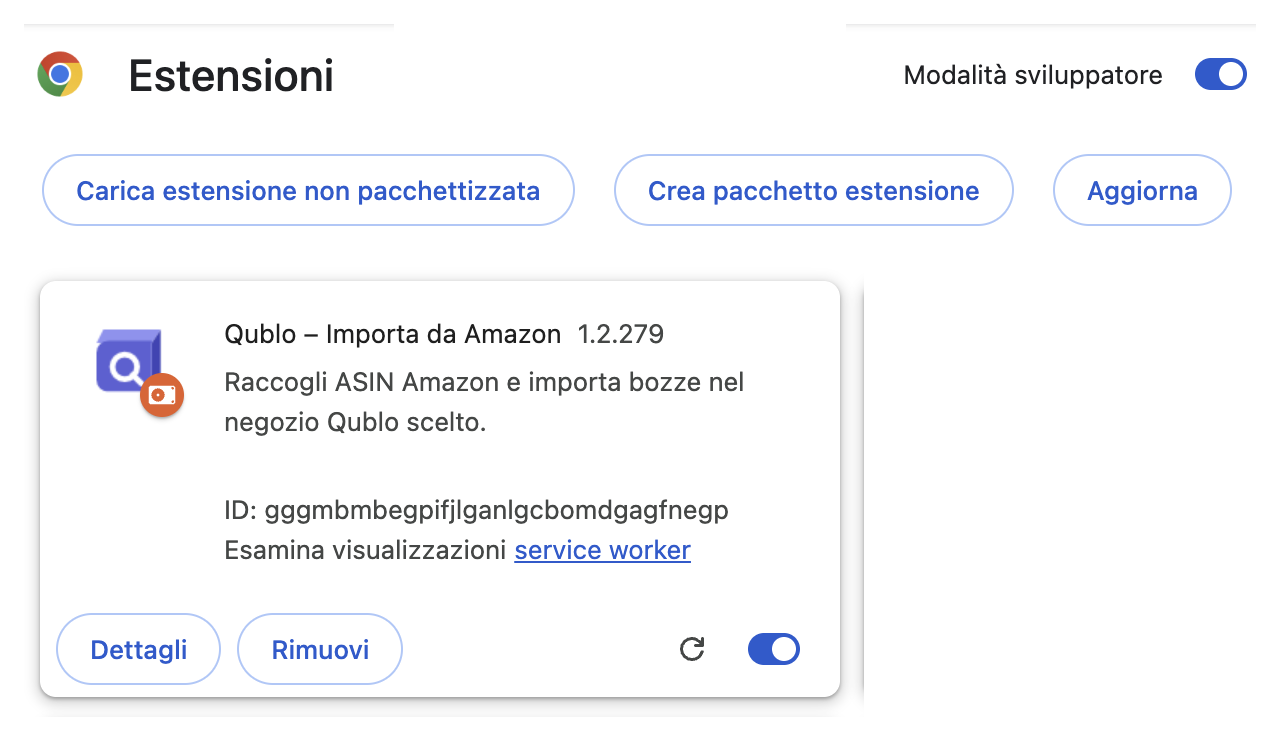
Find the Developer mode switch at the top right. If it is grey, click it: it turns blue when enabled.
The screenshots show Qublo already present, first with Developer mode off and then on. If you are installing for the first time, the Qublo card will appear after you load the ZIP. The screenshot with Developer mode off retains the browser's original warning about the extension's origin.
Before: Developer mode off
After: Developer mode on
4. Drag in the ZIP and leave Qublo enabled
- Open the folder where you downloaded the package.
- Drag the Qublo ZIP file onto the Manage extensions page and release it.
- Wait for the Qublo – Import from Amazon card to appear (Qublo – Importa da Amazon in the Italian screenshot).
- Check that the switch on the Qublo card is ON.
Check both switches: Developer mode at the top of the page, and the switch on the Qublo card. Both must stay enabled.
5. Pin Qublo and sign in
- Reopen the browser's puzzle-piece menu.
- Find Qublo – Import from Amazon and click the pin beside its name to show it in the toolbar.
- Click the Qublo icon and sign in with your account email and password.
- Open Amazon for your eBay store's country and select the compatible store in the Qublo panel.
The extension is ready. Choose how to begin:
After submitting, check the outcome in Drafts: importing does not automatically publish on eBay.
Check the result before importing
- In Manage extensions, check that the Qublo – Import from Amazon card is present.
- Check Developer mode and the Qublo card's switch separately: both must stay enabled.
- In the puzzle-piece menu, check the pin and open the Qublo icon.
- After signing in, open Amazon for the store's country and check which destination is available.
Seeing the icon means you can open the extension; seeing a selectable store also indicates that the destination is compatible. These are different checks. If no usable store appears, complete the connection in Qublo settings before trying to import.
If your first sign-in does not work
If the popup does not open, check again that Qublo is enabled in Manage extensions and reopen its toolbar icon. If an Amazon page was already open during installation, reload it before looking for the Qublo controls.
If sign-in is rejected, check the email and password for the account you want to use. If the message concerns your session, subscription or a required update, keep the text and follow the specific instruction. Do not share passwords or access codes with support.
If a store is disabled, read the reason beside it. A different country, incomplete configuration or expired eBay authorisation is not resolved by loading the ZIP again.
Example: your first check on Amazon
For a first check, choose a product you know on the Amazon site for your store's country. Check the model and variant, then open Qublo and confirm the destination store. Follow Import a product from an Amazon page, without adding a large list straight away.
After submitting, open Drafts in Qublo and check the outcome, store and resulting product. Installation and first sign-in do not publish anything on eBay. Once that first check is clear, you can move on to collecting a list or reviewing the draft before publishing.