Import products from a CSV file
Prepare a file with ASINs or Amazon links, choose the store and check the drafts created.
On this page
Prepare the CSV
Use CSV when you already have a list of Amazon products. The Qublo template contains ASIN and URL columns: they identify the products to analyse.
- Open Drafts → Create new drafts → CSV and click Download CSV template.
- Keep the header. Enter one product per row, with only one code or link per cell. Do not put several ASINs in the same cell.
- Fill in at least one of the ASIN or URL columns; leave unused cells blank.
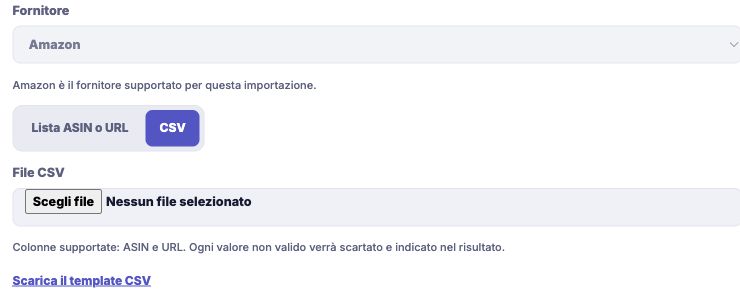
- Save the file as CSV and check that it does not exceed 2 MB. Split the list into several files if necessary.
Keep Amazon countries separate. Also check that the spreadsheet has preserved the complete codes. The template does not import prices, descriptions or orders.
Check the format, separator and cells
The CSV reader recognises ASIN and URL headers without distinguishing upper and lower case. It also recognises LINK as the name of the links column; to avoid uncertainty, you can keep the headers in the template downloaded from Qublo.
The separator can be a comma or a semicolon: it is detected from the header. Use the same separator throughout the file. If your software offers several export formats, open the saved CSV and check that the columns are still separated correctly.
Do not put a list of codes inside one cell: the whole cell is read as a single identifier. The ASIN or URL text form is a different workflow and does not make that same arrangement valid in a CSV.
Example: a list of two products
To prepare two products, use two rows below the header. In the first, you can fill in ASIN with the product code; in the second, you can fill in URL with another product's link from the same country. Leave the other cell in each row blank.
- Check both products on Amazon and confirm the variants you want.
- Export only the sheet containing the list, in CSV format.
- Reopen the exported file and check the header and the two rows.
- Upload it, choosing the store for that country.
This example avoids specifying the same product twice in a row. Do not enter costs or pricing rules in the template: you will check those on the drafts.
Upload the file and start the import
- In the Create new drafts form, check the store under Publish to and the marketplace under Sell in.
- Select CSV and choose the file from your computer.
- Set Import all variants too according to the products you want to request.
- Click Import CSV and wait for submission confirmation.
Always check the destination before clicking, even when the file contains links that already identify the Amazon country.
Read the results and fix errors
Open the import results to see the drafts created and the invalid items. Correct excluded items before preparing a new submission for them.
- Empty file: add codes or links in the rows below the header.
- Unrecognised columns: start again from the template and keep ASIN or URL.
- File too large: split it into CSV files within the limit.
- Uncertain outcome: recover the retained submission before uploading the file again.
You can also start with a CSV exported from the Qublo extension: it contains the ASIN column. Check the country where the list was collected and choose the corresponding store.
If the file cannot be read
- ASIN or URL is missing: check the first row. A generic title such as Products does not replace a recognised header.
- The file contains only headers: add at least one non-empty code or link.
- Unclosed quoted field: correct the CSV in the original software and export it again; an open quotation mark can prevent subsequent rows from being read.
- Excessive size: create separate files with the same header, each within the limit.
Before a second submission, check whether the first was rejected or accepted. A file-reading error and a lost response after submission require different checks.
Follow the file import
In the details, use the product or ASIN search and the outcome filters to focus on excluded or failed requests. A completed percentage means that the ASIN requests have finished, not that every row became a new draft.
If recovery shows the original CSV filename, it is checking the retained request: you do not necessarily need to select and submit that file again. A new submission, however, must be treated as a separate request.
Keep a copy of the file you used and the job reference if you need to report an error. Then continue with reviewing the drafts, checking products, images and prices before publishing.