Schedule draft publishing
Choose a future date and time to start publishing on eBay.
On this page
Prepare the drafts to schedule
Scheduling defers publishing on eBay and adding products to inventory until a future time. It does not start a new collection from Amazon.
Save the drafts first and check the store, marketplace, content, price, quantity and policies. The requirements are the same as for immediate publishing.
Before choosing a time
Check that the products are drafts from the correct store, not already published listings. Make sure they are not already involved in publishing or a request whose outcome remains uncertain. A new date does not resolve the result of the previous attempt.
Save the content first: category, item specifics, images, price and settings must be those you want to submit. Open any row alerts and complete the indicated requirements. The scheduling command does not correct product information.
When scheduling a group through the action bar, check the count and the scope of the selection. If you use Select All, you include the filtered results beyond the visible page as well.
Set the date and time
- In Drafts, select the products and check the count.
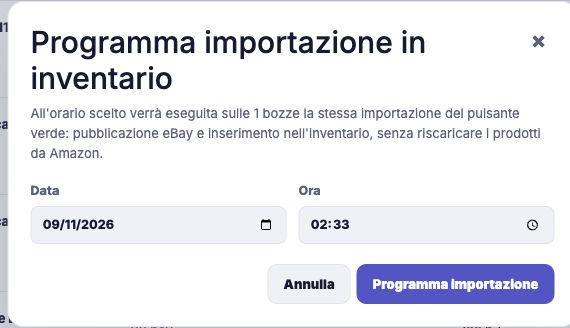
- Click Schedule Publication. The Schedule inventory import (Programma importazione in inventario) window opens.
- Fill in both the date and time. Scheduling uses the Rome time zone, with standard or daylight-saving time for the selected date.
- Review the selection and click Schedule import (Programma importazione), following any checks requested by Qublo.
Choose a future time with at least a minute to spare. If Qublo reports a nonexistent or ambiguous time caused by a daylight-saving change, select a different time.
If you work with stores in other countries, do not use the buyer's local time: this window still uses the Rome time zone.
Schedule one draft from the editor
You can also work from the Other section in the editor of an unpublished draft. Save your changes in the other tabs first, then check the scheduling field and the command offered.
- Open the correct draft and go to Other.
- Enter the publication date and time in the dedicated field.
- Read any validation messages and check the time in the Rome time zone.
- Use the available scheduling command and check the recorded request.
If the editor indicates that publishing is already in progress, check that job before continuing. Filling in the field does not, by itself, save a schedule; look for confirmation and the time recorded on the draft or in the activity.
Example: choose a time for a store abroad
You are working from Italy on a store in another country and want publishing to start at 18:00 Rome time. Enter the chosen date and 18:00 in the field: the form's reference remains Rome, not the customer's or store's country.
If you start instead from a time in the other country, first determine which moment it corresponds to in Rome and check the date too. Simply changing the number of hours without considering the day or daylight-saving period is not enough.
Scheduling sets the job's start time; it does not guarantee that every listing will be visible at the same instant. After the selected time, open the status and check individual outcomes.
Check the request and the result
- After acceptance, check the request's date and time in publication status.
- When the job starts, follow its progress and read each product's outcome.
- Check the published products in inventory.
- For failed items, correct the indicated reason before retrying. For those needing verification, wait for status confirmation.
The selected time concerns the start: an accepted request does not guarantee that every product will publish successfully.
If you close the window before confirming, you have not created a schedule. To check that one exists, look for the recorded request and its time.
Resolve date and request errors
- Missing date or time: complete both fields.
- Time is not in the future: move the start forward. The system requires a time more than thirty seconds ahead; a minute to spare avoids getting too close to the limit while confirming.
- Nonexistent or ambiguous time: during clock changes, choose a different, unambiguous time.
- Existing schedule: check the one identified by the message. The attempt reporting the conflict does not replace it automatically.
If the request is not confirmed, check the activity before submitting it again. For quota, configuration or eBay outcome issues, see the publishing troubleshooting guide; do not repeatedly change dates to work around the reason.