Import products using Amazon codes or links
Create drafts from a list of products and choose the eBay store where you want to prepare them.
On this page
Choose a method and prepare your list
The ASIN or URL form is suitable when you can copy a few products directly or already have a text list. For a file prepared in a spreadsheet, use CSV import instead. The extension offers two other options: buttons on a product page, or manual collection with Extract.
To check an ASIN, compare the code and the variant on the Amazon product you intend to sell. Ten valid characters identify the format, but do not guarantee that you have chosen the right model. A search link can display many items and does not identify the individual product to import.
Prepare your codes or links
You can create drafts from ASINs or Amazon product page links. An ASIN is a ten-character code containing letters and numbers: it identifies the product and, where applicable, the selected variant.
Before you start, connect and configure the destination eBay store. Prepare a separate list for each Amazon country: links from different marketplaces require separate submissions.
Accepted codes and links
Use an ASIN containing ten letters or numbers, or a complete Amazon product link. An eBay listing ID or an SKU does not replace the Amazon ASIN. With an ASIN alone, check the country in the destination: the code does not identify the marketplace by itself.
This workflow supports Italy (amazon.it), Germany (amazon.de), the United States (amazon.com) and Australia (amazon.com.au). The link's country must match the selected store.
| Format | What to check |
|---|---|
| ASIN | The complete code, without other text on the same line. |
| Product link | Addresses containing paths such as /dp/ASIN or /gp/product/ASIN; the mobile format /aw/d/ASIN is also recognised. |
| Short link or generic page | Open the link and copy the final Amazon product page address, or use the ASIN. |
In these paths, ASIN means the real code to use, not the word to paste. A format recognised in the form does not guarantee final product validity: the result may identify a link without an explicit identifier or a duplicate item in the same submission. Correct the affected row before submitting it again.
Create the drafts
- Open Drafts and click Create new drafts.
- Under Publish to, choose the eBay store; under Sell in, check the marketplace.
- Select ASIN or URL list and paste one code or link per line. For links, use Amazon product pages.
- Choose whether to enable Import all variants too. Leave it off to request only the specified product.
- Check the number of recognised items and the destination summary, then click Create Drafts.
The destination fields do not publish products: this step creates drafts in Qublo. If no compatible store is available, complete its connection in settings first.
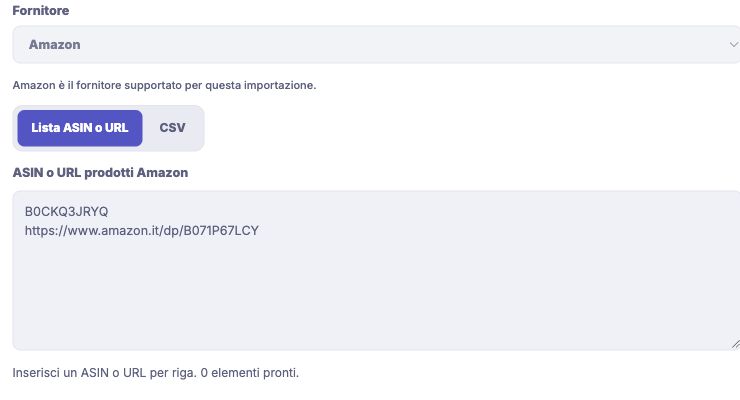
Example: prepare three products for one store
Imagine preparing three products from Amazon Italy for the Italian eBay store you have connected. One of the three comes in several colours. First decide whether you want only that colour or the family of variants: this choice changes what Qublo will request.
- Prepare the three ASINs or the three product page links, one per line.
- Select the Italian store and check Sell in again.
- Choose the variants option before confirming.
- Check the requests and the resulting drafts in the results.
This is an example of the procedure, not a guaranteed number of drafts: variants and any products already present can make the counts differ.
Check the drafts that were created
After acceptance, Qublo analyses the products. The import continues even if you change pages or close Qublo; confirmation of submission does not mean that all drafts are ready.
- Open the import activity and check how many products were created or excluded.
- Return to Drafts, select the correct store and remove any filters hiding the products.
- Open the drafts and check their content, variant, price and missing information before publishing.
If the submission outcome is uncertain, use the recovery offered by Qublo before submitting the same products again. See the steps in Troubleshoot product imports.
Distinguish requests from drafts
In the import details, the progress percentage counts ASIN requests, not the final number of drafts. One request can produce several variants; a completed request can also have been excluded, failed or cancelled.
Where the data is available, the Drafts in this import summary distinguishes new drafts from existing drafts linked to the result. It counts each draft ID once. It is not the current total on the Drafts page, which may include other work and the filters applied to the view.
Also check the destination store shown in the details. If it is not included in the current view, use the link to that store's drafts when available.
If the submission is rejected
If Qublo says the eBay configuration needs to be completed, return to the store settings and resolve the point indicated. If eBay verification is temporarily unavailable, keep the list and the message: repeating the submission as a new request does not resolve verification.
For an expired session, sign in again and check the destination before retrying. For a subscription issue or suspended imports, follow the account message and, if necessary, contact support with the reference shown.
When the drafts are ready, continue with reviewing them in the editor. Do not move on to publishing based only on the import counter.