Review and edit a draft
Open the product, complete the editor sections and save your changes before publishing.
On this page
Open the draft you want to edit
- Open Drafts and check the selected store.
- Find the product by title or identifier.
- Click Edit on its row and check the title in the window.
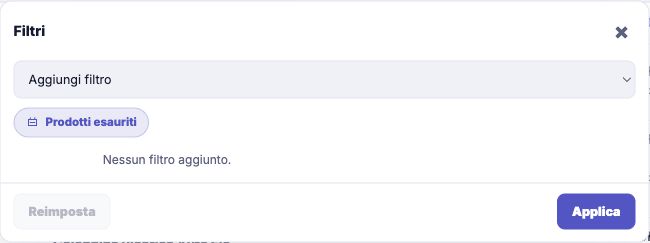
If you cannot find the product, temporarily remove filters and check that its import has finished.
Before editing: identify the product and variant
Open the linked Amazon product and compare its variant with the draft. Check model, colour, dimensions and package contents: the editor may display a prefilled proposal, but your review must concern the product actually being sold.
Decide which sections you need to change before starting. If you only need to update one detail, avoid applying a general reset. If many drafts need the same correction, consider bulk editing, within its limits.
An already published product and a draft do not have the same operational effect. This guide covers Drafts: always check the page and product status before using a command.
Complete the content and images
- In Details, review the title, description and category. The title can contain at most 80 characters.
- If you change the category, open Item specifics and complete the fields required for the new category.
- Use Save changes in the section you edited and wait for confirmation.
- In Template, check the presentation of the description.
- In Images, check the photos, their order and the primary image; use the available controls to add, remove or reorder photos, then save.
Compare the content and images with the imported variant: they must describe the same product.
Work on the category’s item specifics
Item specifics depend on the eBay category. After changing the category in Details, wait for the new category's fields to load. A previously optional field may become required, and a value used before may no longer be suitable.
- Open Item specifics and identify the required fields.
- Enter a value that matches the product, using the available choices where the field offers them.
- Read any limits or suggestions beside the row.
- Save and wait for confirmation.
Required rows cannot be removed with the bin. If you add an item specific, avoid duplicate names. A suggestion marked for review needs your attention: do not turn it into a confirmed feature without checking the product.
Choose photos and the primary image
In the Images tab, you can open previews, move photos and make a suitable one primary. The first image is marked Primary. Removing a photo from the group is not the same as deleting the draft.
To add photos, use a valid public URL or upload PNG or JPEG files. Uploads accept files up to 8 MB, and the collection supports up to 24 images. If a file is rejected, check its format and size and the number of images already present before retrying.
Any tiles marked as copies are not new views of the product. Check that the original photos represent the correct variant, then click Save changes. To discard only the unsaved changes in the tab, use Reset changes when available.
Add a photo from a URL or your computer
- In Images, click Add from URL to open the address field.
- Paste the public URL of the individual image and click Add. To choose a local file, use Upload image instead.
- Check the photo in the preview. Move it with the arrows or use Make primary if it should be first.
- Click Save changes before closing the tab.
The URL must address the image, not the Amazon product page. If it is not added, check the address and whether it is already present; if you have reached the image limit, remove an unnecessary photo first. The PNG/JPEG and 8 MB limits already described still apply to local files. The preview helps you check the photo, but does not replace saving.
Check the price and settings
- In Price, check the supplier cost, sale price and profit settings.
- Check quantity and availability management.
- In Other, review policies and the other listing settings.
- Save each section you edited and wait for its confirmation message.
- Reopen the draft to check the saved values.
Closing the window does not replace saving. A saved draft stays in Qublo: publishing on eBay starts separately.
Choose how to set the draft’s price
- Open Price and check the summaries for cost, sale price, costs and taxes, and profit.
- To use store rules, leave Automatic price calculation enabled and Product-specific profit disabled.
- For a rule applying only to this draft, enable Product-specific profit and choose Percentage, Fixed amount or Fixed price under Margin type, then complete the fields shown.
- To enter the price manually, disable Automatic price calculation and fill in Sale price.
- Review the result and click Save changes. Reopen the draft to check the saved value.
If the supplier cost is missing or the source is unavailable, some controls are disabled: read the alert before changing modes. Manual Availability cannot be edited while automatic stock monitoring is enabled. For commission, profit and configured VAT calculations, see Read price, fees and profit.
Example: correct a draft before publishing
You imported a desk stand, but the title contains an incorrect dimension. Correct the title in Details and check the same measurement in Item specifics. If you choose another category, complete its required fields first. In Images, make the photo of the correct version primary.
Then move to Price: check the cost, sale price and target used. A fixed price, a dedicated rule and automatic calculation are different choices; check the financial summary before saving. The VAT shown follows the configuration applied, rather than a new tax determination made by the editor.
Reopen the draft after saving. For description presentation, see templates; for alerts, use the alert details. Publish only after checking the result.
If you cannot save
Read the alert beside the field or section: complete the required information and correct invalid values. After changing category, wait for item specifics to load before trying again.
If Qublo indicates that publishing is in progress, check its outcome before working on the draft again.