Importing and drafts
One product list. One CSV import.
When your product selection is already in a spreadsheet, bring it into Qublo with a CSV file. Start with the template and find the products in Drafts.
See the complete guide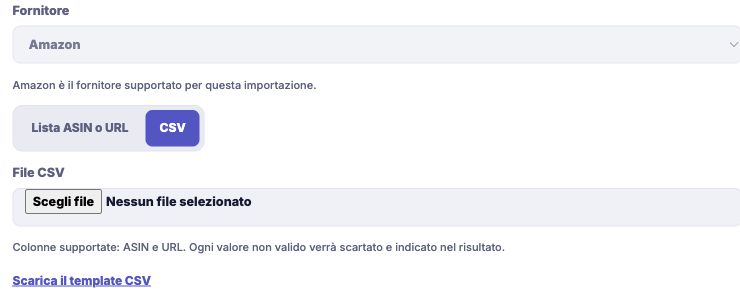
Give longer product lists a clear structure
The downloadable template helps you prepare a file Qublo can read. Keep its headers and add one product per row, using an ASIN code or a product page link. Choose the correct store and supplier market before uploading it. Once processing finishes, compare the outcome with your original list: variants, duplicates and rejected products can change the number of drafts created.
- Download the template from Create new drafts.
- Import a list with a separate reference for each product.
- Review processed rows and identify entries that need correcting.
How to get started
Prepare the file
In Drafts, open Create new drafts, choose CSV and download the template. Fill it in without changing its headers.
Choose the destination
Check the store and market before uploading the CSV. Keep a copy so you can refer back to your original product selection.
Review the drafts
Read the operation’s outcome and open the imported products. Complete the required details before publishing them.
Find every step in the documentation
Screens, instructions and practical checks for this feature.